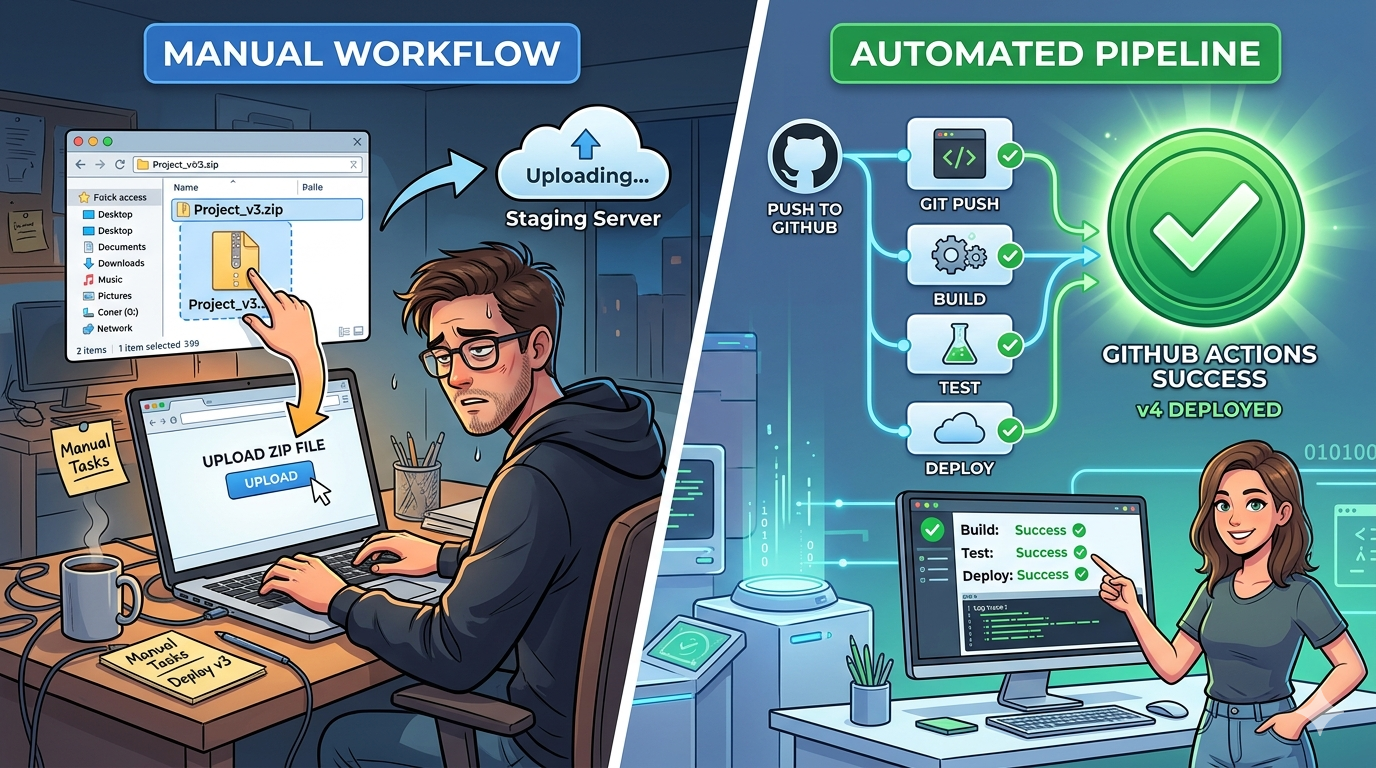
Every time I shipped a new version of my Chrome extension, I dreaded the same ritual - bump the version, zip the build folder, log into the Chrome Web Store Developer Dashboard, upload the file, fill in the release notes, and hit publish. It sounds simple, but do it a dozen times and you start wondering: why am I doing this manually?
That’s when I wired up GitHub Actions to handle it for me. Now every merge to main ships my extension automatically. Here’s exactly how I did it.
What You’ll Need Before You Start
Before writing a single line of YAML, make sure you have three things ready: a Google account with Chrome Web Store developer access, an extension already listed on the store (even in draft), and a GitHub repository with your extension code.
You’ll also need to create API credentials from Google. Head to the Google Cloud Console, create a project, enable the Chrome Web Store API, and generate OAuth 2.0 credentials (Client ID + Client Secret). Then use the OAuth playground to get a refresh token scoped to https://www.googleapis.com/auth/chromewebstore. This one-time setup unlocks programmatic publishing.
Storing Secrets in GitHub
Never hardcode credentials. Instead, go to your GitHub repo → Settings → Secrets and variables → Actions and add these three secrets:
EXTENSION_ID- the unique ID from your Chrome Web Store listing URLCLIENT_ID- from your Google Cloud OAuth credentialsCLIENT_SECRET- same placeREFRESH_TOKEN- obtained from the OAuth Playground These values will be injected securely into your workflow at runtime.
The GitHub Actions Workflow
 Create a file at
 .github/workflows/publish.yml in your repo:
name: Publish Chrome Extension

on:
  push:
    branches:
      - main

jobs:
  publish:
    runs-on: ubuntu-latest

    steps:
      - name: Checkout code
        uses: actions/checkout@v4

      - name: Set up Node.js
        uses: actions/setup-node@v4
        with:
          node-version: '20'

      - name: Install dependencies
        run: npm ci

      - name: Build extension
        run: npm run build

      - name: Zip the build
        run: zip -r extension.zip dist/

      - name: Upload & Publish to Chrome Web Store
        uses: mnao305/chrome-extension-upload@v5.0.0
        with:
          file-path: extension.zip
          extension-id: ${{ secrets.EXTENSION_ID }}
          client-id: ${{ secrets.CLIENT_ID }}
          client-secret: ${{ secrets.CLIENT_SECRET }}
          refresh-token: ${{ secrets.REFRESH_TOKEN }}
          publish: true
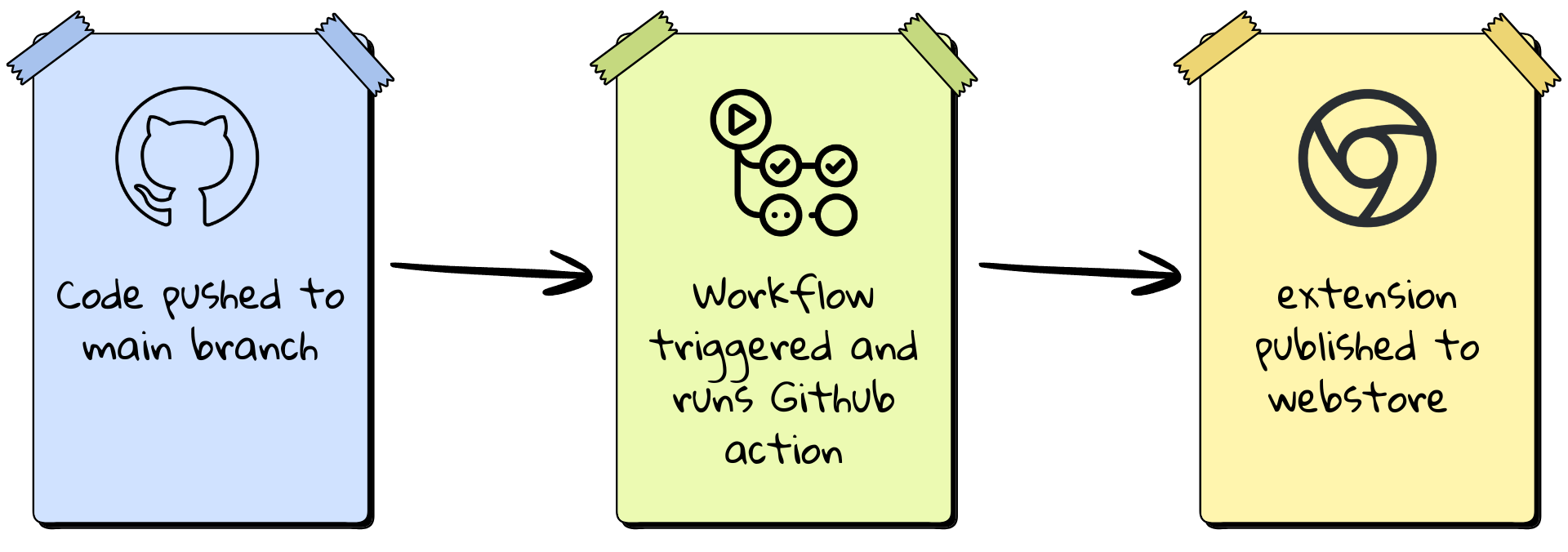
This workflow triggers on every push to main, builds your extension, zips the output, and publishes it to the Chrome Web Store - all without you lifting a finger.
A Few Things Worth Knowing
The publish: true flag submits the extension for review immediately. If you’d rather upload it and review before going live, set publish: false - the new version will sit in draft on the dashboard until you manually publish.
Also make sure your manifest.json version is bumped before merging. The Chrome Web Store rejects uploads with a version number that already exists. A clean approach is to automate version bumping using npm version patch as part of your release process or a separate workflow.
Why This Matters
Beyond saving time, this workflow makes your release process consistent and auditable. Every deployment is tied to a commit, logged in GitHub, and repeatable. If something goes wrong, you can trace it back instantly.
It also removes the human error factor - no more forgetting to update the store listing or uploading the wrong build. The pipeline either passes or it fails loudly, which is exactly what you want in a release process.

Wrapping Up
Setting this up takes about an hour the first time, mostly spent navigating Google’s OAuth flow. But once it’s in place, shipping your Chrome extension becomes as simple as merging a pull request. That’s the kind of automation that quietly makes your development life better every single week.
If you’re building Chrome extensions and still deploying manually, this is the one workflow worth setting up today.

Comments