
I recently worked on something where I had to use Advanced Find or filter views every time while exporting weekly or monthly reports. Although we can create personal views to make the data sorted, I was curious to know how the filtered data actually gets exported.
So, I checked the DevTools and identified the API endpoint and payload used during the export process. Interestingly, I discovered that we can even tweak the FetchXML.
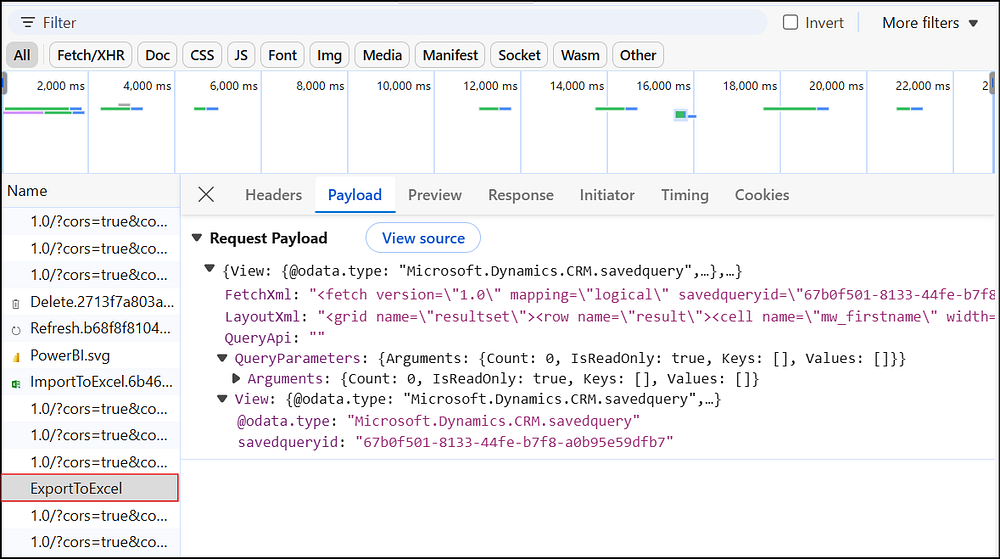
For an easy implementation, I tried this using a simple instant flow in Power Automate. I added an Invoke an HTTP request action and configured a POST call to the endpoint:
https://yourorg.crm8.dynamics.com/api/data/v9.0/ExportToExcel
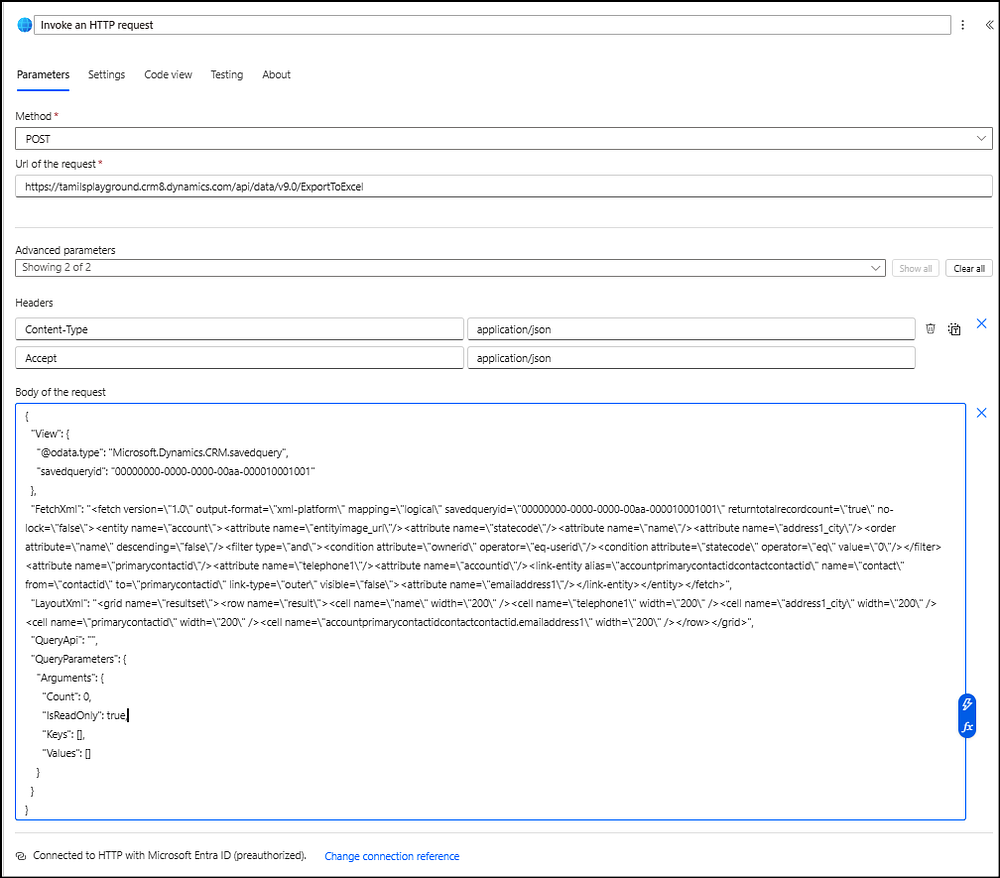
Using the same headers and payload found in DevTools, I ran the flow and it worked as expected. The response contained a Base64 value of the exported Excel file. You can refer to the screenshot below.
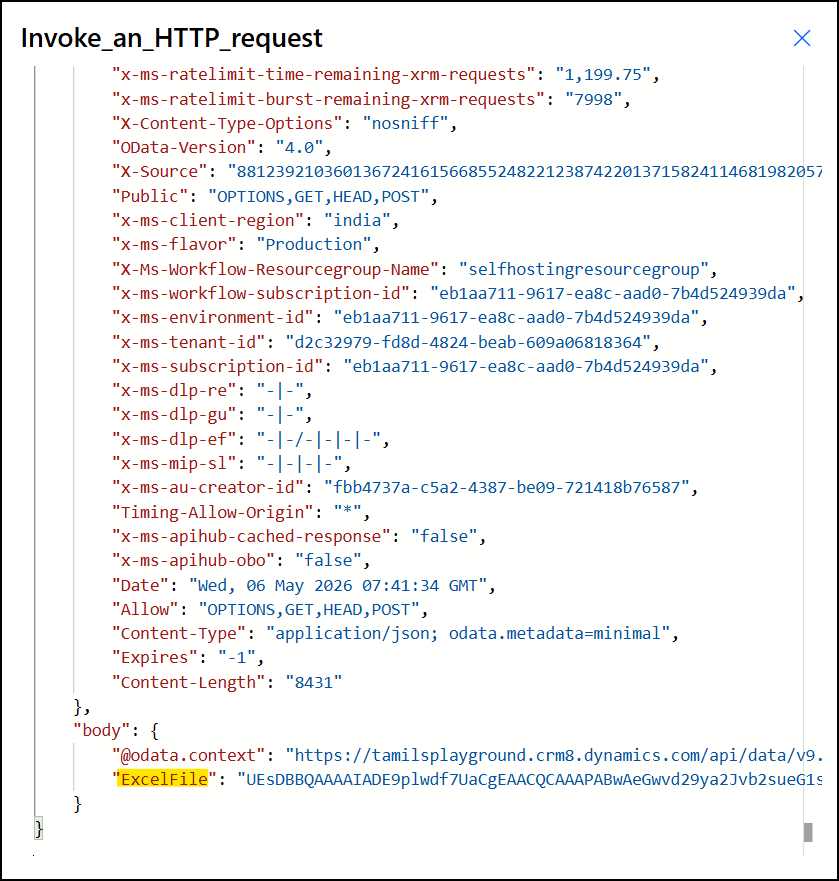
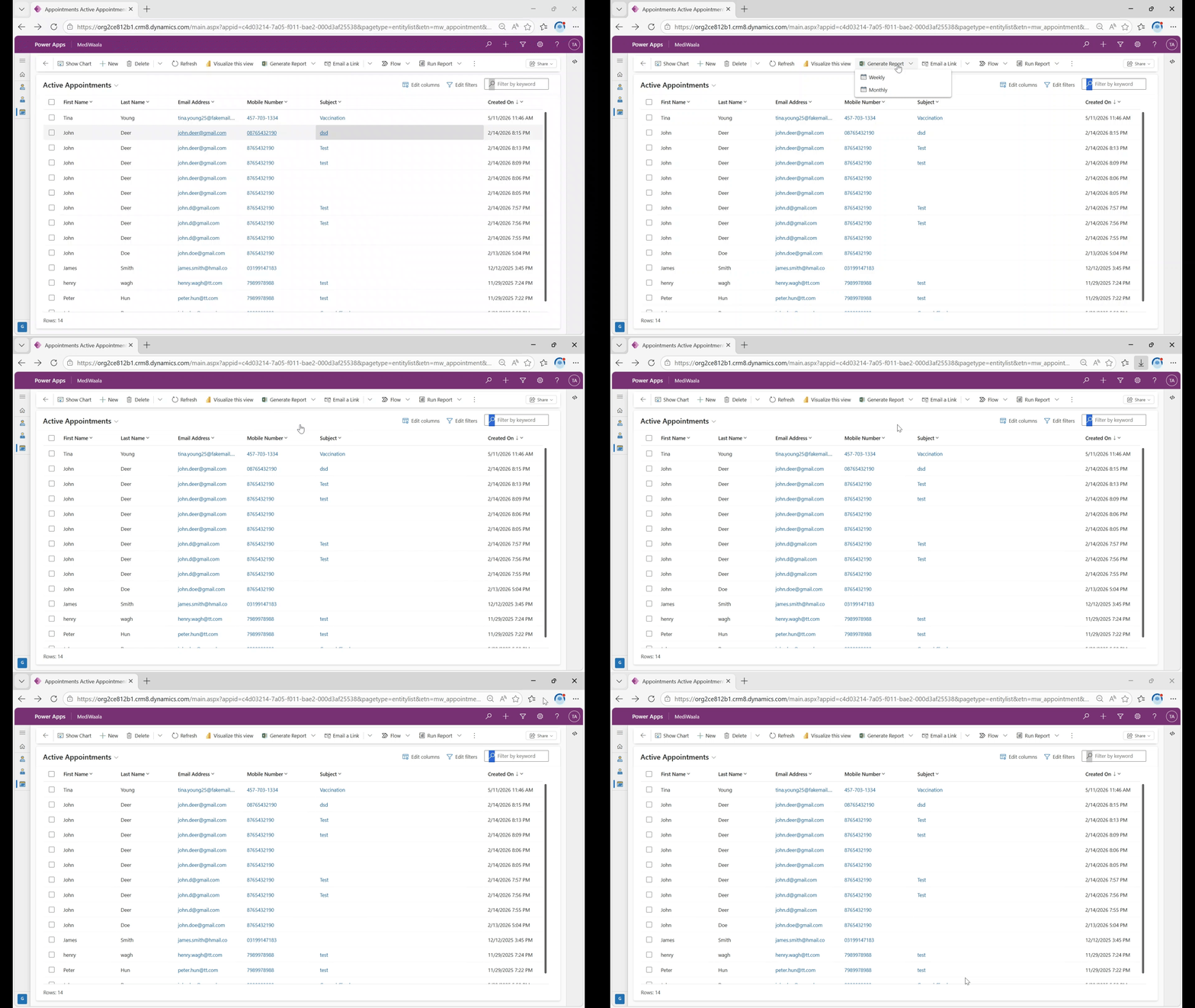
After this successful test, I moved on to the actual requirement. The goal was to generate weekly and monthly reports on a button click. To achieve this, I created two buttons - Weekly and Monthly - inside a dropdown command menu.
Next, I created a JavaScript web resource named _generateExcelReport.js_. I added a function to both buttons and passed a string parameter to identify the report type. I invoked a bound action called ExportToExcel (but you can’t find it in Power Automate - I tried). We need to pass the Fetch XML and Layout XML as parameters for the action. I tweaked the Fetch XML based on the button that was clicked. In the response, you receive the Excel file encoded as base64, which I decoded to binary and downloaded using the script. I tested it, and it worked as expected. You can find the script for this implementation below.
Note: This approach is not recommended by Microsoft, as it is not mentioned in their documentation.
Refer to the GIF below for a demonstration of the custom button and how the script works.
References:
- Code to Excel: Export Like a Pro! — Andrew Butenko’s Blog
- Export to Excel Dataverse Table with Power Automate — Ludovic Perrichon
- Export to Excel using Dynamics 365 SDK — Dreaming in CRM & Power Platform
Have a great day!



Comments