
Ever wondered if you could host a survey form in Power Automate and have the submitted data directly inserted into Dataverse? I recently read a blog by Matthew Devaney that explains how to host a page in Power Automate and add data to a SharePoint list. Inspired by that, I wanted to demonstrate the same concept using Dataverse - so here it is.
For this demonstration, we need two flows. One is for hosting the contact form, and the other is for inserting the values into the Dataverse Contacts table. Both are interdependent - one displays the form, while the other handles the data processing.
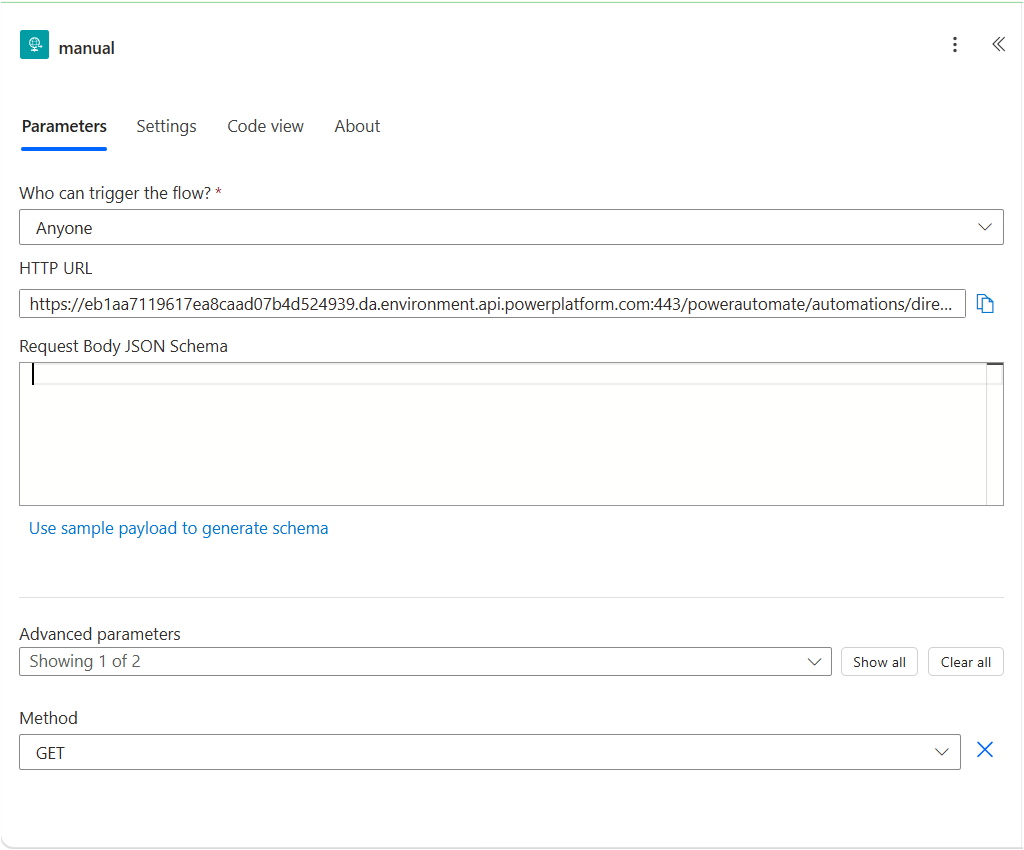
So, I straight move into the https://make.powerautomate.com and create an instant flow with trigger “**When a HTTP request is received**”, select Anyone in Who can trigger the flow? and method as GET.
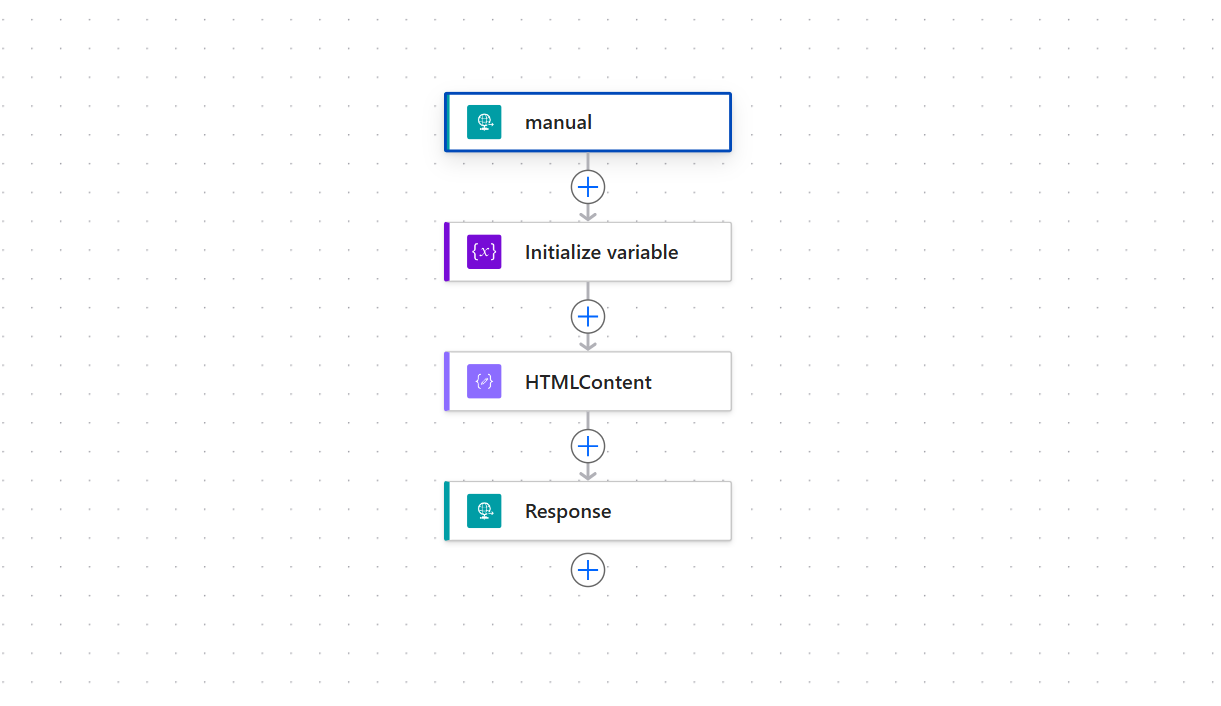
Next, add an Initialize Variable action. Initialize it with a dummy value for now — we will replace it later with the POST URL.
Then, add a Compose action and set its input to the HTML code for your form. You can find the form I have used below.
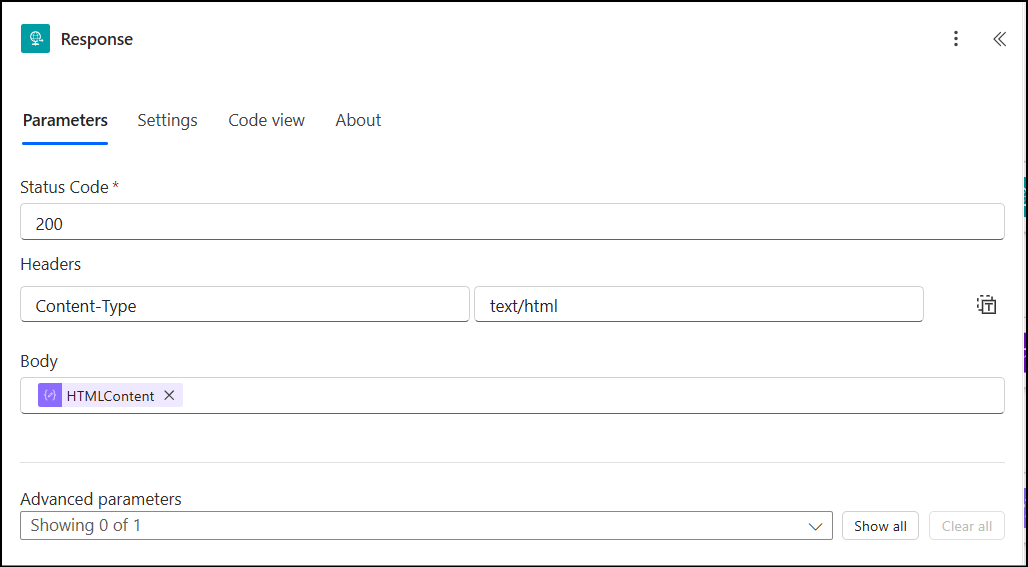
After that, add a Response action at the end and configure it as needed to return the HTML content.
Finally, your complete flow for hosting the web page should look like this.
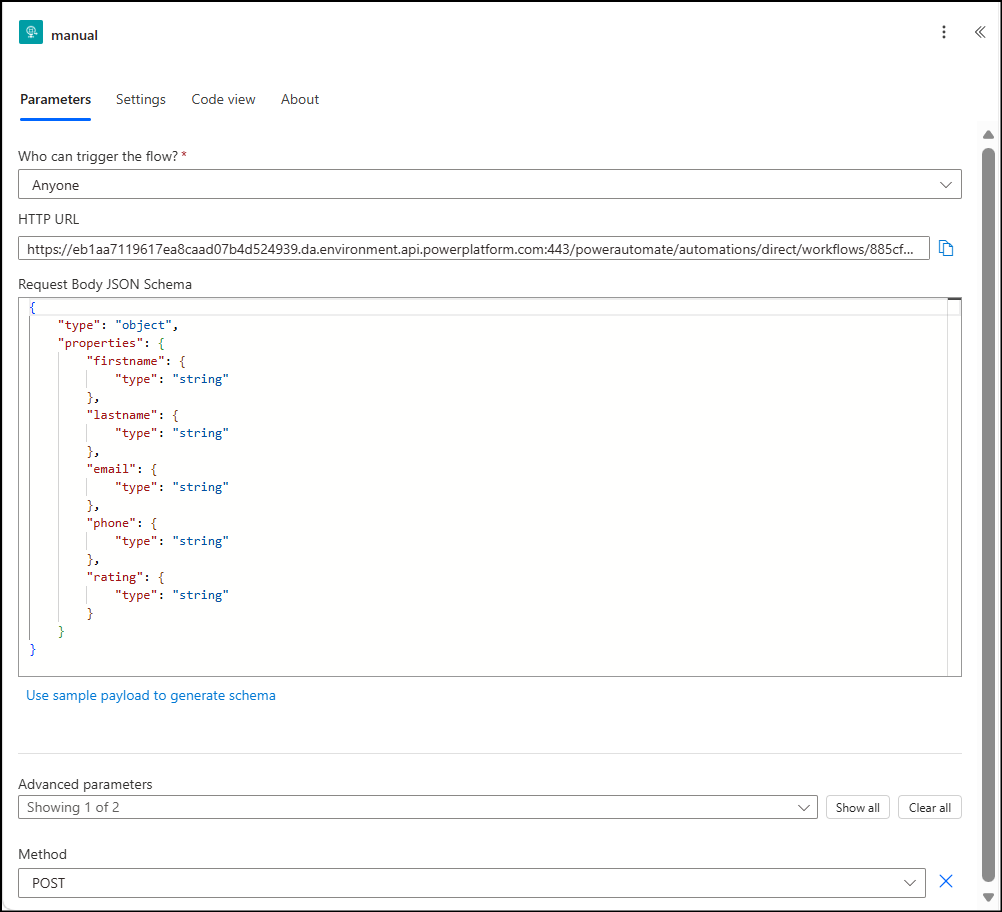
Since we have hosted a survey form, we need another flow to save the submitted data. Create a new instant cloud flow with the trigger “When an HTTP request is received.” This time, set Who can trigger the flow to Anyone and the method to POST. Configure the trigger accordingly.
Copy the HTTP POST URL from this form-processing flow. Then, go back to the Host a web page flow and replace the dummy value in the Initialize Variable action with this URL.
Next, add an action to store the form data. Since we want to save the data in Dataverse, use the Add a new row action and map the form fields to the respective columns in the Survey table. Save both flows.
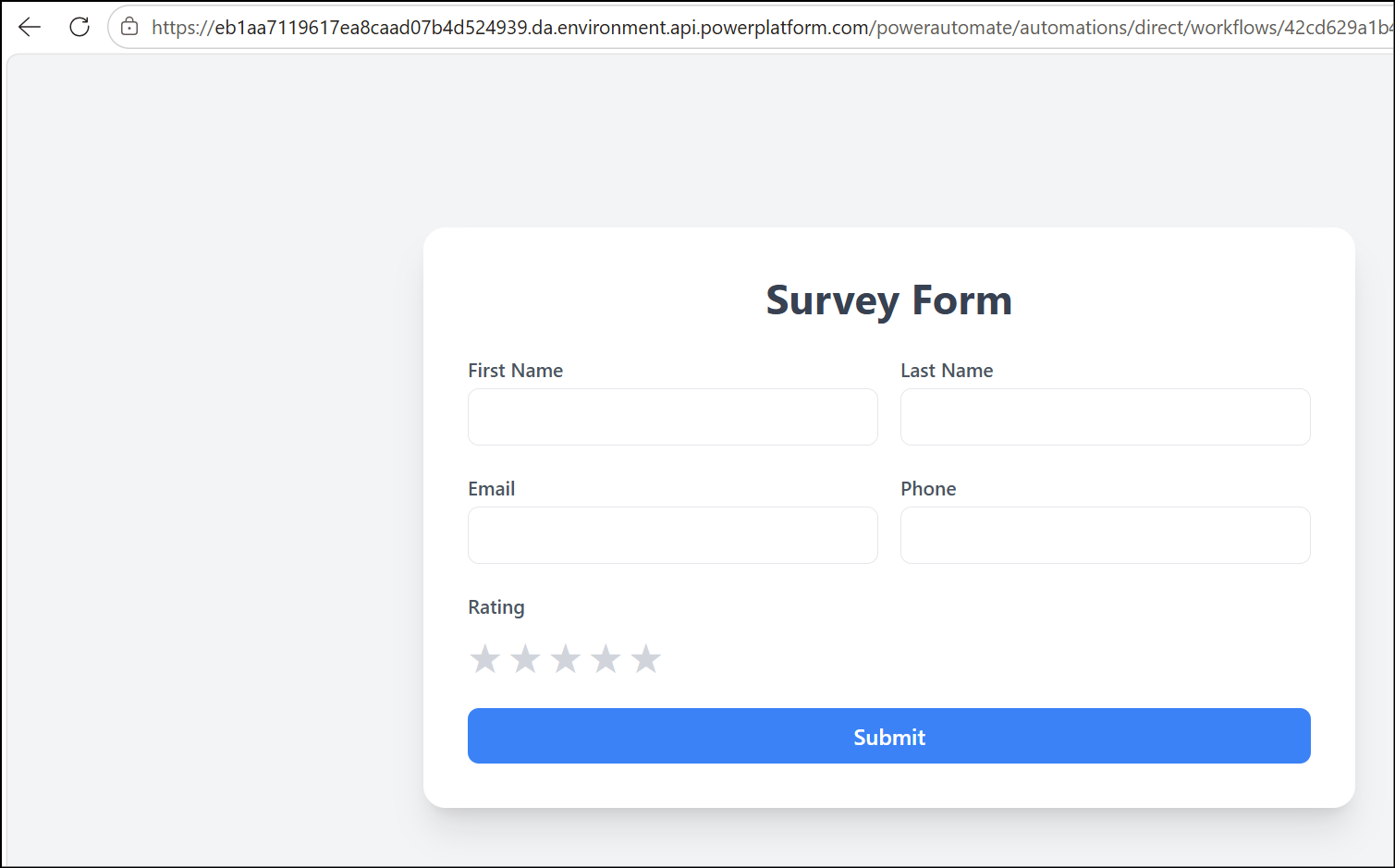
Now, copy the URL from the Host a web page flow and paste it into your browser. You’ll see the HTML survey form you created.




Comments