
Relate rows
We can associate Dataverse rows using Power Automate. The records must possess one-to-many or many-to-many relationship.
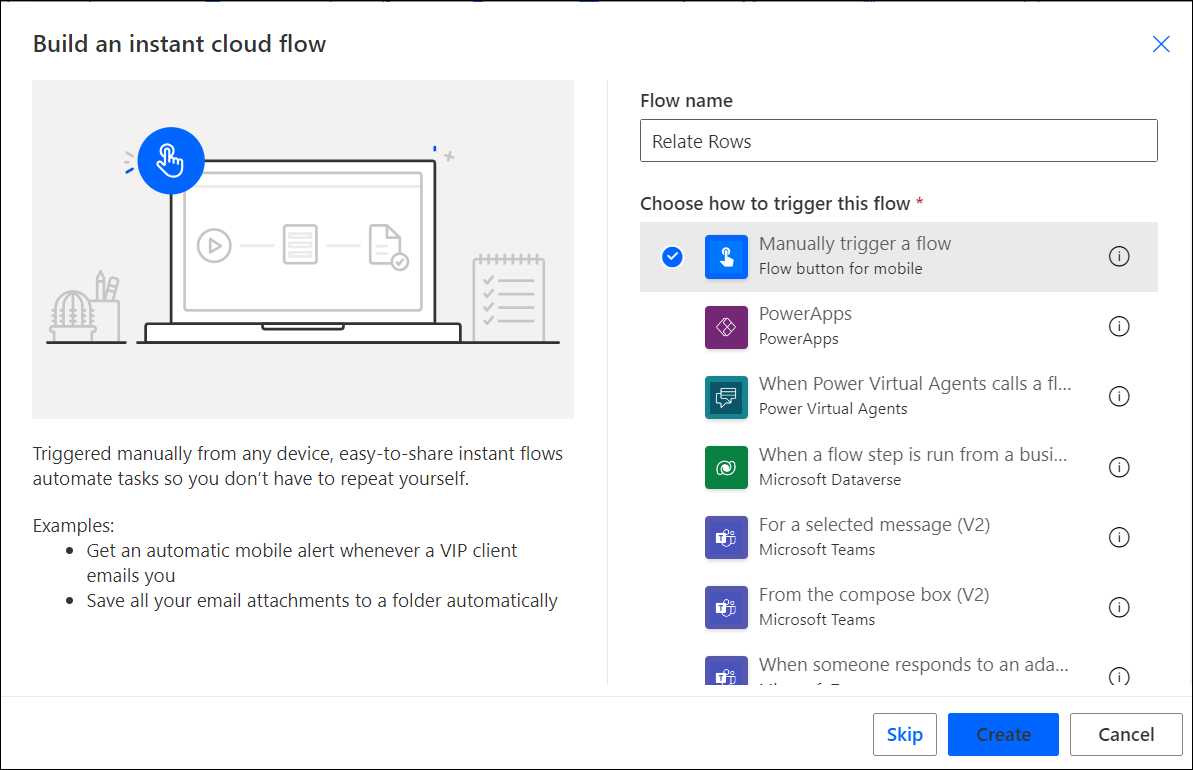
- Navigate to Power Automate 🡲 +New 🡲 Automation 🡲 Cloud Flow 🡲 Instant.
- Add a name to the flow and select manual flow as a trigger
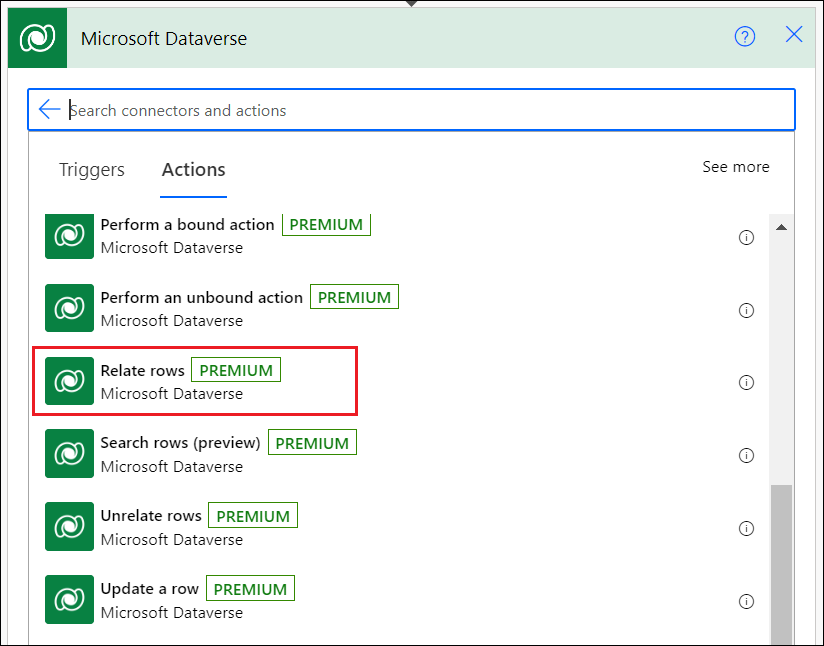
- Add a Dataverse step named Relate Rows below the manual trigger step.
- In this article, I want to relate an account record with id 37b08bbd-30f7-ed11-8848-000d3a0a7d50 and a contact with record id a5268935-3e13-ee11-9cbd-000d3a0ab265.
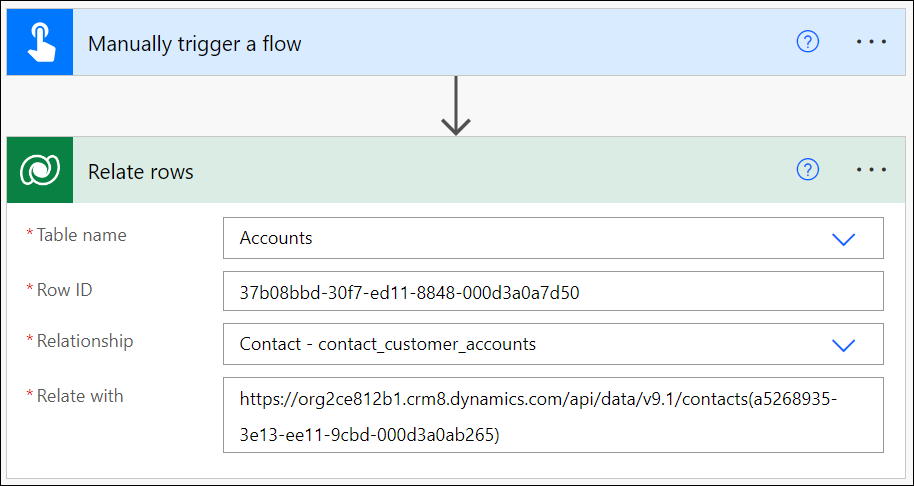
- In the relate rows step, we must mention the Table/Entity, row ID (record ID), Relationship, and Relate with.
- For the Relationship field, select the respective relationship for the record which we want to relate with. In my case, I have selected contact_customer_contacts.
- Relate with field only accept the row URL or OData URL of the target record.
- Save the flow and Test it.
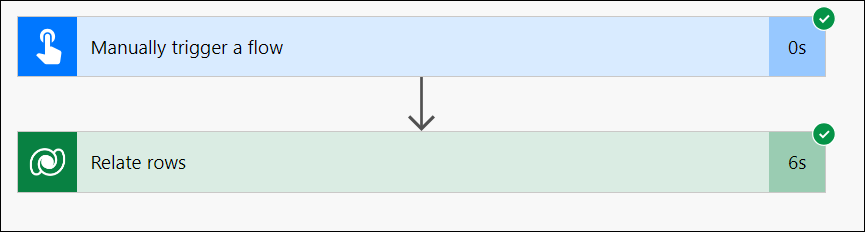
- The flow ran successfully. Let’s check the record which we related.
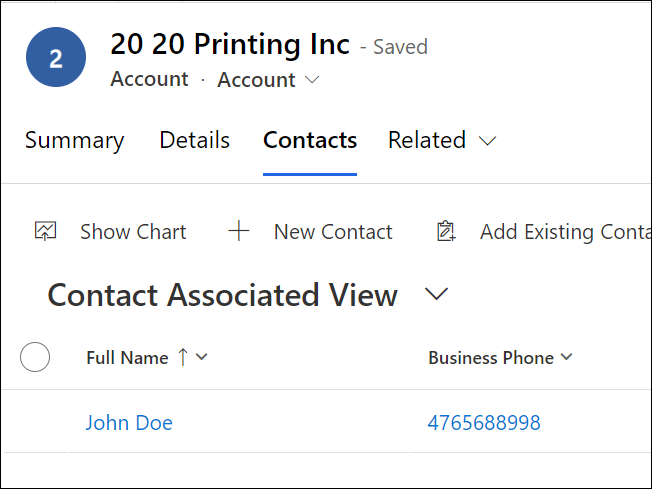
- The account 20 20 Printing Inc. is related with the contact John Doe.
Unrelate Rows
We can disassociate the records which are associated using one-to-many or many-to-many relationship. We are using the same record (related in previous section) to demonstrate the Unrelate rows too.
- Create a new Instant flow in Power Automate
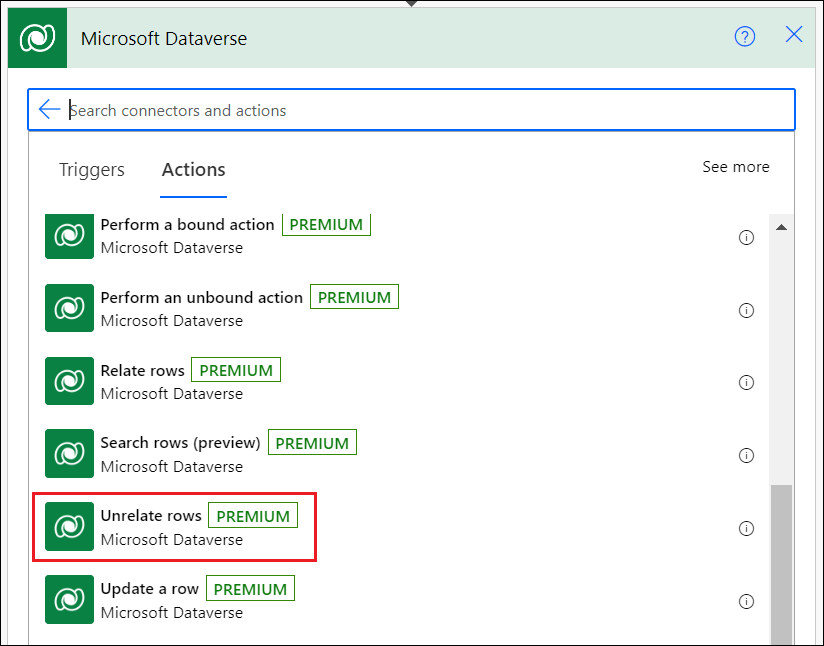
- Add a Dataverse step named Unrelate rows below the manual trigger.
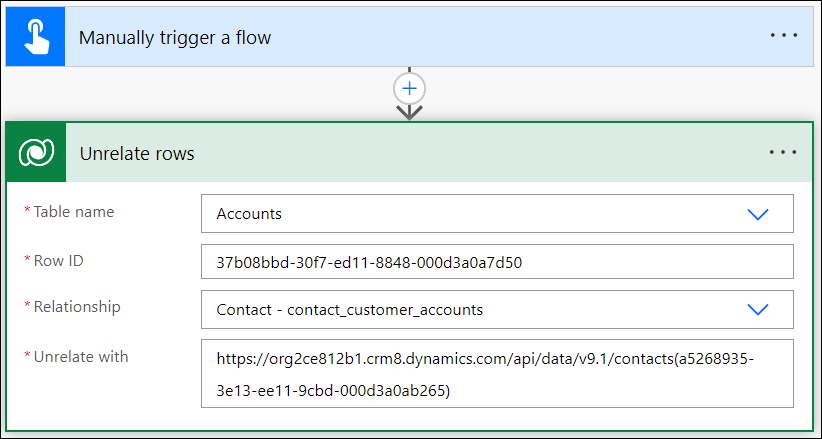
- Add Table Name, Row ID, Relationship and Unrelate With fields.
- For the Relationship field, select the respective relationship for the record which we want to disassociate with. In my case, I have selected contact_customer_contacts.
- The unrelate with field accepts the record’s OData URL. Do give it as mentioned in the above image.
- Save the flow and run.
-
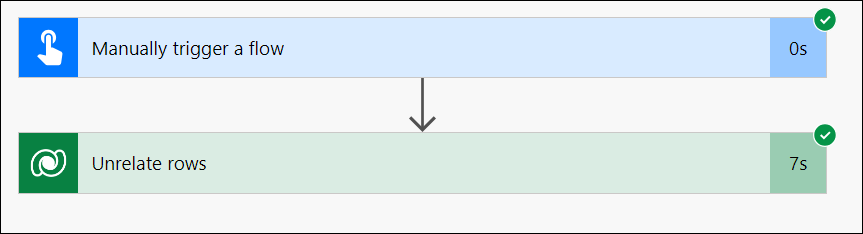
- The flow ran successfully. Let’s check the record whether it is disassociated or not.
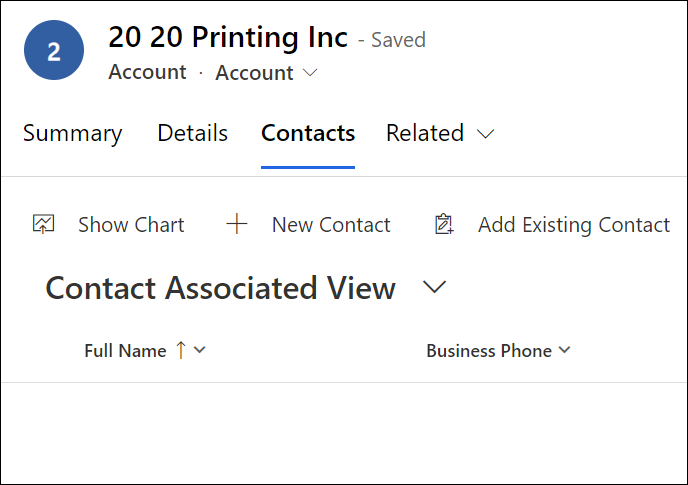
- Hurray! The record is disassociated.
Have a Great Day!




Comments